

Overview Video
Target Focus Modifier
The Target Focus Modifier gives the camera the ability to follow, track, and frame one or more actors with predictable and controllable behavior. It handles acquiring targets, validating them, choosing the best primary focus, adjusting rotation, managing screen composition, and dynamically scaling camera distance based on what the player is looking at.
The modifier supports single-target locking, multi-target grouping, directional target switching, tag-based behavior, automatic distance adjustments, and both soft and strict validity rules. Everything blends cleanly, even when targets move, go off-screen, become obstructed, or require a fallback option.
Target Focus can run entirely on its own or be layered with other modifiers. It does not take camera authority; it influences camera rotation and distance using settings that are intentionally predictable.
Target Focus stays inactive until a search request identifies one or more suitable actors. From that point on, it remains active until no valid targets remain, or until it’s manually disabled.
Responsibilities
- Acquiring potential targets based on distance, visibility, tags, view direction, and strategy.
- Selecting a primary target or a view average and maintaining it until deliberately changed or invalidated.
- Managing multiple targets, including group bounds, shared focus points, and center-of-mass framing.
- Determining whether targets are on-screen, obstructed, out of bounds, or invalid.
- Handling automatic or manual swapping between targets.
- Applying rotation rules so the camera turns toward the target.
- Adjusting camera distance using distance scaling, screen-edge influence, physical bounds, and tag-based behavior.
- Using easing, interpolation, and state checks to keep camera motion smooth.
- Supporting overrides, priority layers, and row-based changes to configuration.
- Providing detailed debugging tools for visibility, target changes, thresholds, and additive calculations.
Working With Target Focus (Controls)
All activation, deactivation, cycling, queries, and configuration are done through the Camera Manager Component under the Target Focus category.
The modifier only runs when enabled by these functions, and it disables itself when no valid targets remain.
Target Acquisition & Activation
These functions trigger the system that searches for and maintains valid focus targets using current Target Focus Settings.
- Search For Focus Targets
Initiates a full scan for viable focus targets. (Using current settings = strategy, filters, validity conditions, distance rules, etc.)
If any are found, Target Focus activates and selects a primary target automatically. - Cycle Focus Target
Cycles through all active targets. - Cycle To Best Target
Moves to the most suitable target based on strategy, visibility, and score.
Manual Target Control
These allow manually adding or removing targets without relying on automatic scanning.
- Add Focus Target (Single)
Adds a single actor as a focus target.
If this is the first target, the modifier immediately activates. - Add Focus Targets (Multi)
Adds multiple actors at once.
If this is the first targets, the modifier immediately activates. - Override Focus Target (Single)
Replaces all current targets with a single new one. - Override Focus Targets (Multi)
Replaces the entire target list with a new set.
If no more targets exist, Target Focus deactivates. - Remove Focus Target (Single)
Removes a single target.
If it was the last one, Target Focus deactivates. - Remove Focus Targets (Multi)
Removes multiple actors at once. - Disable Focus Target
Deactivates Target Focus manually.
Settings & Configuration
These interact with the Target Focus Data Table or override runtime logic.
- Update Target Focus Settings
Updates the entire Target Focus Settings struct from a DataTable row. - Override Target Focus Strategy
Overrides the targeting strategy (angle-based, distance-priority, directional, etc.). - Override Target Focus Filter
Overrides which actors are allowed or excluded (e.g., visibility-only targets, team-based filtering, tagged actors, etc.).
Runtime Query & State
For checking or retrieving current focus information.
- Is Target Focus Active
Returns whether the Target Focus Modifier is enabled. - Get Current Primary Target
Retrieves the current primary target actor. - Get Current Targets
Returns all currently active focus targets. - Get Default Target Focus Settings
Fetches the configured default settings (from the DataTable). - Get Current Target Focus Settings
Retrieves the live settings currently applied (after overrides or changes). - Get Potential Focus Targets
Returns the full list of all potential targets based on the current scanning logic, without activating the modifier.
Extending & Customizing Target Selection
(Advanced designer/programmer section)
Get Potential Targets
(Located inside the modifier under category “Target Getters”)
The modifier gathers all available targets through this function before selecting the best candidate.
You can extend or replace behavior by:
Adding new filtering rules
Restricting targets to custom gameplay states
Favoring specific classes, tags, or teams
Creating proximity or direction-based logic
Prioritizing bosses, leaders, or groups
Using alternate search shapes (frustum, path traces, multi-sphere passes, etc.)
The modifier includes several ready-to-study functions inside the same category, such as:
Sphere searches
Cone searches
Tag and class filtering
Visibility and LOS checks
View direction scoring
Multi-target group extraction
Edge and angle evaluation
These can be copied or expanded to create highly specialized behavior
(e.g., “prefer airborne targets,” “exclude stunned enemies,” “favor the largest threat,”
“only track bosses,” “select nearest target in front of the player,” etc.)
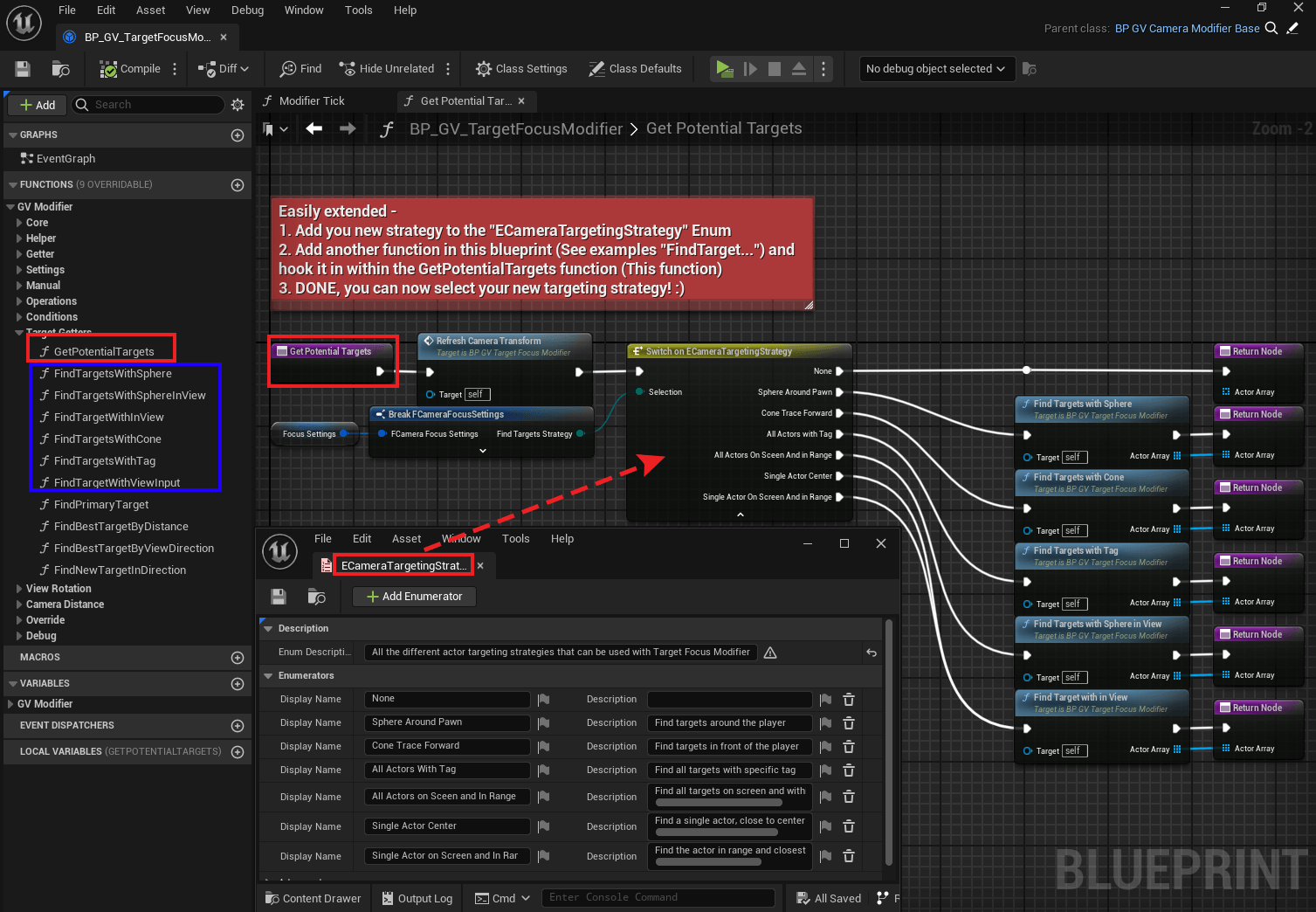
Simple two step process on how to add your own targeting strategy to the modifier.
Red = Core Functions. Blue = Example Functions.
- Examples
Custom enemy/team logic, distance or vertical biasing, boss-priority rules, weighted prioritization, special rules for groups, swarms, or companions, the limitations of this function approach is in your hands.
Target Focus Settings
The Target Focus settings define both who can be focused and how the camera behaves once a target is active.
Below is a breakdown of the major categories and what each parameter contributes to overall behavior.
Targeting Strategy
How the modifier searches for targets and decides which one should be treated as the “primary” focus.
Find Best Target Filtering Method
Defines which filter is used to decide which actor is the “best” target.
Different filter types look at things like distance, screen position, or other scoring rules.
This only runs when new targets are being evaluated, not every frame.Find Targets Strategy
Controls how targets are collected and refreshed (one-shot, periodic, radius-based, etc., depending on your implementation).
This affects when “Search For Focus Targets” actually updates the list of candidates.
Focus Distance Behavior
How camera distance is adjusted once a target (or several targets) is locked.
Enable
Turns distance scaling on or off for Target Focus.
When disabled, Target Focus won’t adjust camera distance at all.Min Camera Scaled Distance
If a target ends up closer than this, the effective focus distance is pushed back to this value.Max Camera Scaled Distance
Upper distance limit used by the distance logic.
Targets that would push the camera further than this are clamped so the camera doesn’t drift too far back.Use Distance From Zoom Settings
When enabled, Min/Max camera distance is pulled from the active Zoom Settings instead of these fields.
Good when you want Target Focus to respect the same distance limits as normal gameplay.Distance Interpolation Duration
How long it takes to move from the current camera distance to the newly calculated distance.Distance Scaling Interp Type
Easing function used when blending distance over time.
This only affects the motion of the camera, not the final target distance.Distance Scaling Exponent
Shapes the selected easing function when the type supports an exponent.
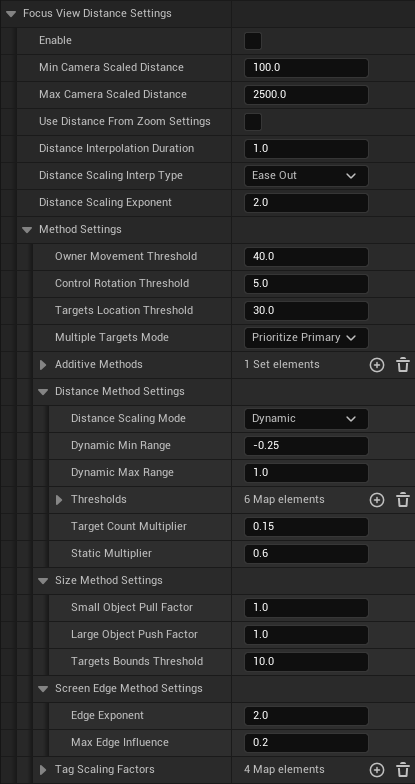
Method Settings
Fine‑grained control over when we recompute distance, and how that distance is decided.
Update Thresholds (Performance / Stability)
These decide when we should recalculate distance.
Owner Movement Threshold
Player/owner must move at least this many units before we recompute focus distance.
Keeps the camera from re-evaluating for tiny foot shuffles or idle sway.Control Rotation Threshold
Camera must rotate at least this many degrees before a new distance calculation is allowed.
Prevents constant distance jitter while the player makes micro-aim adjustments.Targets Location Threshold
A target must move at least this many units before we recalc distance.
Useful for large enemies or bosses that have small idle motion but should not constantly drive minor zoom changes.
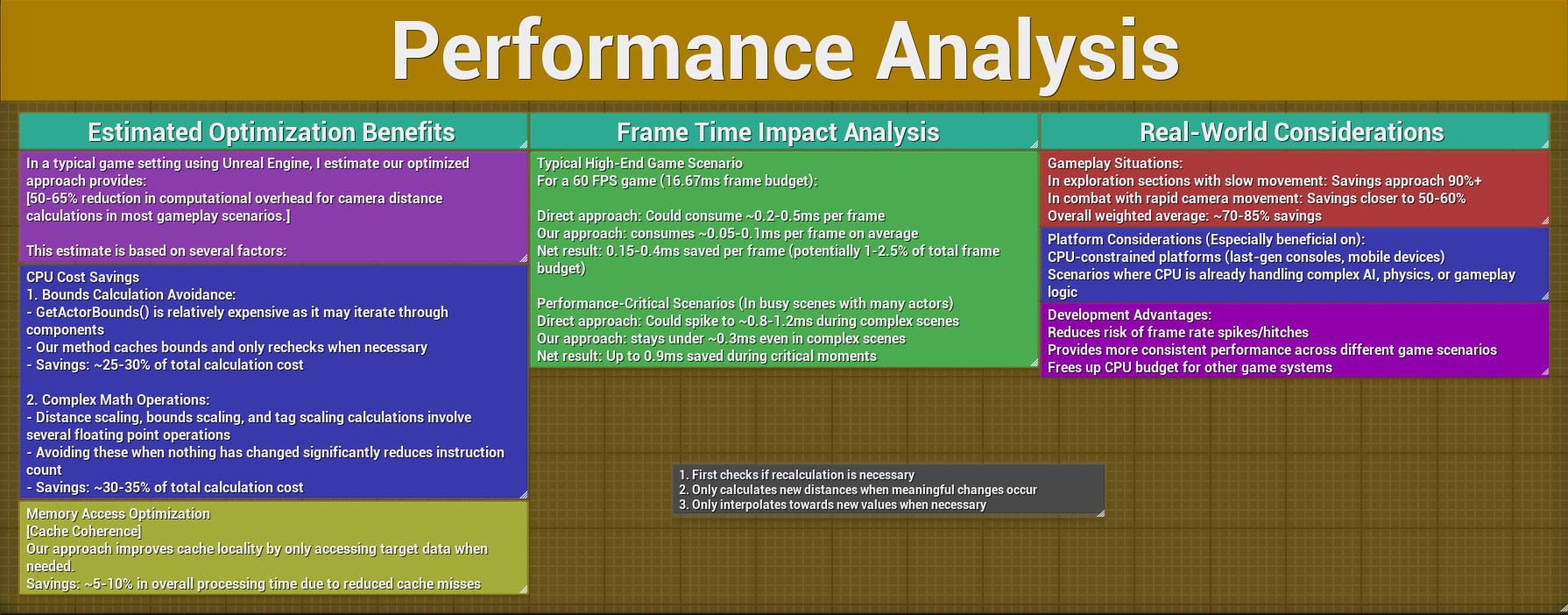
illustration of in-editor performance analysis made related to thresholds that work to limit unnecessary recalculations.
Disclaimer: Only tested on one computer, results may vary.
Multi-Target Mode & Additives
Multiple Targets Mode
How we prioritize and combine multiple targets when distance is computed.
Controls whether we bias toward the primary target, average them, or use some other rule when several actors are active.Additive Methods
Set of distance “ingredients” that can be stacked together: dynamic range, thresholds, size, screen edge, tags, etc.
Enable or disable these per profile to decide which factors are allowed to influence the final distance.
Distance-Based Scaling
Distance Scaling Mode
Chooses which distance method to use: dynamic range, threshold-based, target amount of targets, pure static.
This decides how the underlying multiplier is built from distance.Dynamic Min Range
Lower bound for the dynamic distance multiplier.
Negative values pull the camera closer when the dynamic method kicks in.Dynamic Max Range
Upper bound for the dynamic distance multiplier.
Positive values push the camera further back.Thresholds
A map of “distance → multiplier” entries.
Each entry adjusts the camera distance when the target distance crosses that threshold:
Negative values move the camera closer.
Positive values move the camera further away.
Use this when you want predictable behavior at specific ranges (e.g. “pull in close under 500 units, back off after 1500 units”).Target Count Multiplier
Multiplier applied based on the number of active targets.
Example: with a value of 0.2 and 4 targets, the result becomes 0.8.
Negative values tighten the framing as targets increase; positive values pull the camera further back to keep all of them in view.
Static Multiplier
A constant multiplier applied regardless of distance or target count.
Handy as a single “bias” knob when you’re generally happy with behavior but want the camera a bit closer or further away.
Size-Based Scaling
How target size affects camera distance.
Small Object Pull Factor
Extra pull when the focused actors are physically small.
Higher values bring the camera closer to small targets so they don’t disappear in the frame.Large Object Push Factor
Extra push when the focused actors are large.
Higher values move the camera further back so big bosses or vehicles fit on screen.Targets Bounds Threshold
Minimum change in target bounds before the distance is re-evaluated.
Helps avoid constant micro-adjustments when targets slightly change scale or pose.
Screen Edge Influence Scaling
Extra distance adjustments tied to how close targets are to the edges of the screen.
Edge Exponent
Controls how quickly the screen-edge contribution ramps up near the border.
Higher values keep the effect low near center and stronger near the edge.Max Edge Influence
Maximum multiplier from the edge-based method.
Use this to keep edge-driven distance changes subtle or to make them a strong framing tool.
Tag-Based Scaling
Per-tag multipliers that tweak distance based on tagged targets.
- Tag Scaling Factors
Map of Tag → multiplier that’s applied when targets carry those tags.
Examples (from the defaults):"Small_Target"with a negative value pulls the camera closer for small enemies."Boss_Target"with a positive value pushes the camera further back for large, important targets.
This gives you a cheap way to tune “how far back” the camera should sit per enemy type.
Camera distance trying to keep target in view by increasing distance when target nears edge. (Soft lock, rotation disabled)
Focus View Rotation Settings
Enable & General Behavior
Enable
Master toggle for rotation during Target Focus.
When off, focus never touches camera rotation, even if targets update.Focus Offset
Rotational offset added on top of the direct look‑at direction.
Typical case: a negative pitch to tilt the view slightly downward on the target.
Can also be used for over‑the‑shoulder framing.View Interp Speed
How quickly the camera rotates toward the desired focus direction.
Lower values feel looser; higher values cling harder to the focus target.
Player Input While Focused
Camera Input Axes
Per-axis scale for how much player view input is allowed while focus is active.
X = Yaw
Y = Pitch
Set an axis to0.0fto fully lock it, or keep it > 0 to blend between player input and auto-rotation.Allow Yaw Rotation
Toggles yaw adjustments from the focus system.
Turn this off if lateral alignment should come from another modifier or from raw input only.Allow Pitch Rotation
Toggles pitch adjustments from the focus system.
Common case: yaw only lock, pitch fully controlled by the player.
Lock Style & Multi-Target
Hard Lock
Enabled: camera tries to stay welded to the target (plus Focus Offset).
Disabled: camera only applies auto-rotation when target nears the screen-edge.Multiple Targets Rotation Mode
How we compute a look direction when multiple targets are active.
Controls whether we rotate toward the group center, the primary target, or another mode defined by the enum.
Camera rotation applied when target gets close to the edge. (Soft lock)
Focus View Drag Settings
Settings for swapping targets by dragging the view, instead of using cycle buttons.
Enable Change Target With Drag
Turns drag-based target swapping on or off.
Disable this if you prefer target changes only from code or explicit key bindings.Change With Drag Axes
Which axes participate in drag logic, and their sensitivity:
X = Yaw
Y = Pitch
Set an axis to0to ignore it.Drag Strength Threshold
How much accumulated drag you need before we even consider searching for a new target.
Helps avoid swaps from small camera taps.Drag Target Change Grace Period
Cooldown after a successful drag-based swap before another one is allowed.
Prevents a single long drag from cycling through a whole crowd.Drag Replace Primary Target
Only relevant when a single target exists:
True: new target replaces the current one.
False: current target can stay in the list and the new one becomes primary.Drag Input Sensitivity
How quickly drag input reaches the full cone angle used for target checks.
Lower = reach max angle with less input (more sensitive).
Higher = need more deliberate drag to explore the full cone.Drag Max Angle Degrees
Outer limit of the cone away from the camera forward vector where we look for new targets.
Targets outside this cone are ignored for drag-based switching.Max Angle Threshold
How tightly a candidate must match the drag direction to be accepted.
Lower values require more accurate steering; higher values are more forgiving.
Semi-strict view drag target switching rules and debug visualization.
Edge Settings
Edge-based nudges that help keep the target from falling off-screen.
Edge Activation Threshold
Normalized distance from screen center where edge handling begins.
Example:0.7means we start nudging once the target is 70% of the way from center to edge.Target Edge Threshold
Where we consider the target “at the edge.”
Should be greater than “Edge Activation Threshold“.
Between activation and this threshold, auto-rotation gradually ramps up.Auto Adjust Strength
How strong the automatic counter-rotation is when the target rides the border.
Higher values work harder to pull the target back toward center.Minimum Input Influence
Fraction of player input that must remain even when the target is fully at the edge.
View input is scaled down to this value when “Target Edge Threshold” is reached, starting at “Edge Activation Threshold“.
Focus Validity Conditions
Rules for whether a target can be acquired and remain valid.
Screen / Viewport
Check Off Screen
If true, off-screen targets will be treated as invalid candidates and dropped from focus.
Targets are considered off-screen when they reach the “Target Edge Threshold” from the Focus Edge Settings.Screen Edge Threshold
Shrinks the “valid” viewport area by a margin on all sides when we check for on-screen status.
Example:0.1makes the effective region[0.1, 0.9]in both axes, so we treat anything outside as off-screen for targeting purposes.
Distance
Check Distance
If enabled, we require targets to stay within a minimum and maximum range.Min Target Distance
If a target gets closer than this, we push the effective focus point out to this distance.
Reduces jitter when actors overlap the player or camera.Max Target Distance
Maximum distance at which a target is allowed to be considered valid.
Once it moves further away than this, it’ll be released or ignored.
Line of Sight
Release On View Blocked
If true, we eventually drop a target that has no clear line-of-sight to the player.View Blocked Time Tolerance
How long the view can remain blocked before we let go of the target.
Use a small value if you want focus to bail quickly when something steps in front; use a larger value if short occlusions should be ignored.
Debug Options
Debug Print General Data
Prints a one-line summary of the current focus state: strategy, filter, number of targets, primary target name, and which targets are obstructed.Debug Draw Target Bounds
Draws the world-space bounds for all focus targets.
Primary target uses a distinct color so you can see which actor is driving the lock.Debug Draw Line Of Sight
Shows the LOS trace(s) and the internal timer that decides when a blocked target should be released.Debug View Input Direction
Visualizes view input used for drag-based target switching:
The trace/cone used to search for a new target
Only active when drag‑based switching is enabled in the focus settings.Debug Draw Ensure Min Target Distance
Draws the effect of Min Target Distance: how the effective focus point is pushed out when the target gets too close.
Helps when tuning close‑range behavior.Debug Draw Distance Thresholds
Visualizes threshold distances from the Distance Method Settings → Thresholds map.
Good for sanity‑checking where each threshold actually sits in world units.Debug Print Distance Additives
Logs a breakdown of the distance calculation:
1. Which additive methods are active
2. Each method’s contribution
3. Final multiplier, original distance, and target distance
Quick Notes
- All targeting rules are non-destructive; the modifier only influences view and distance.
- Distance scaling systems are additive — each can be enabled or disabled individually.
- Multi-target mode uses group bounds only when more than one valid target exists.
- Overrides allow specific actors or encounters to define custom focus behavior.
- “Owner Movement Threshold“, Control “Rotation Threshold” and “Targets Location Threshold” are purely about when distance recalculations happen. If distance feels jittery or too busy, raise these first.
- If rotation feels too “locked in,” lower “View Interp Speed” and reduce “Camera Input Axes” instead of just turning off Hard Lock. This keeps assistance while still letting the player steer.
- Drag-based switching and input-based locking share the same view input; if drag swaps feel too eager, increase “Drag Strength Threshold” or lower “Drag Input Sensitivity” before touching the angle thresholds.
- For multi-target setups, tune “Multiple Targets Mode” first, then adjust “Target Count Multiplier” to find the balance between “group framing” and “too far out”.
- MinTargetDistance and MinCameraScaledDistance solve two different problems:
MinTargetDistance: “don’t focus behind my back when the enemy is on top of me.”
MinCameraScaledDistance: “don’t let the camera sit inside the target.”
- © 2025 Gameverse Entertainment. All rights reserved.